

Microsoft Purview has always had one of those permission topics that looks simple at first, but becomes interesting the moment you actually test it. 😄
A classic example: you assign someone an Audit related role in Purview. The user can open the Purview portal, navigate to the Audit experience, and everything looks fine. Then they try to run a search, use audit related PowerShell cmdlets, or access certain audit data, and suddenly it becomes clear that the Purview role alone does not always tell the full story.
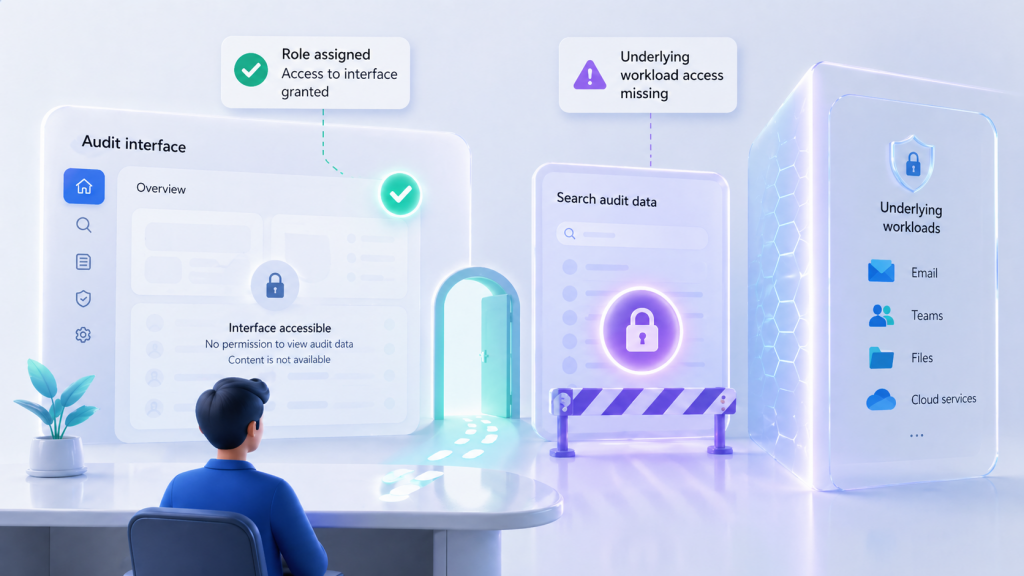
Why? Because many Purview experiences are not working with isolated “Purview only” data. They interact with Microsoft 365 workloads such as Exchange Online, SharePoint Online, OneDrive for Business and Microsoft Teams.
That is exactly where the new Purview Workload Content roles come in. 👇
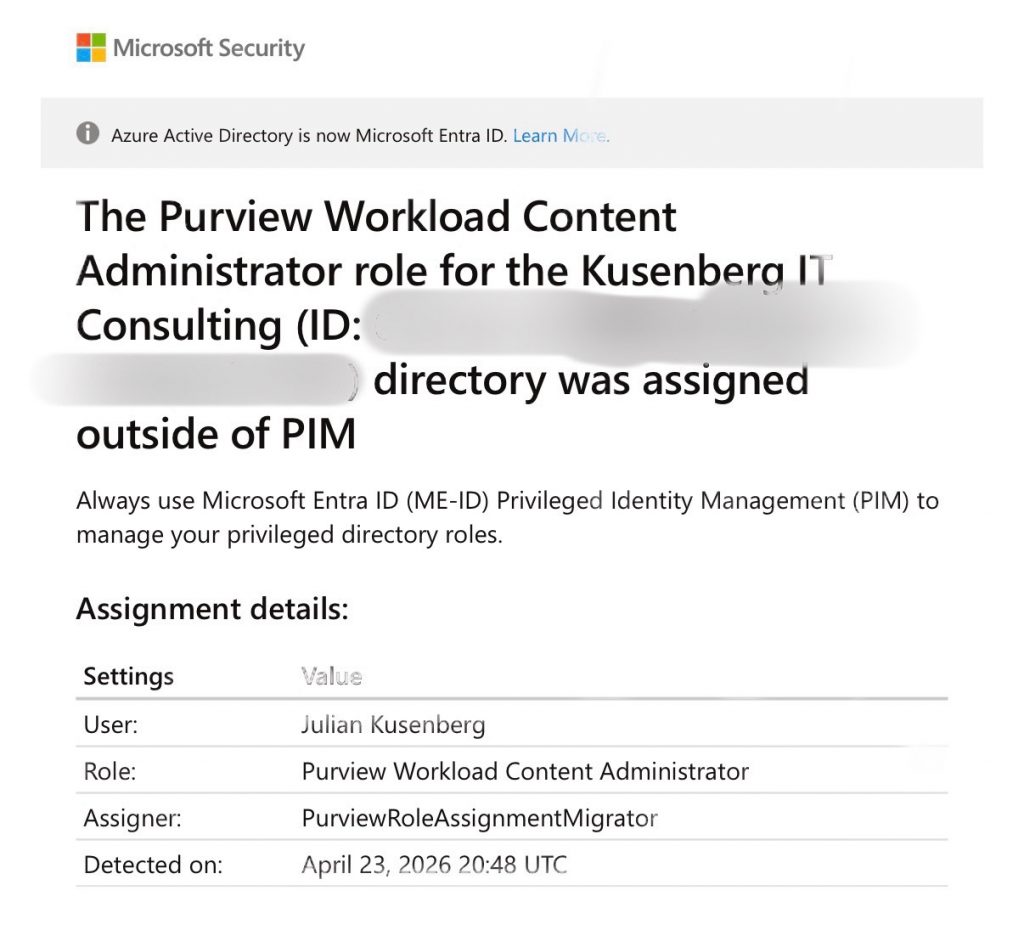
A real-world example of the new Purview Workload Content Administrator role showing up in a PIM alert. The key detail here is the assigner: PurviewRoleAssignmentMigrator.
This alert looks like a classic privileged role assignment outside of PIM. But the interesting detail is the assigner: PurviewRoleAssignmentMigrator. That is a strong hint that the assignment was created by the Purview role synchronization process, not necessarily by a human admin manually assigning the role in Entra ID.
The easiest way to understand the new model is to separate the functional permission from the technical workload access. Purview still defines what a user can do. Entra receives the synchronized workload content role, so Microsoft 365 workloads can authorize the action against the underlying content.
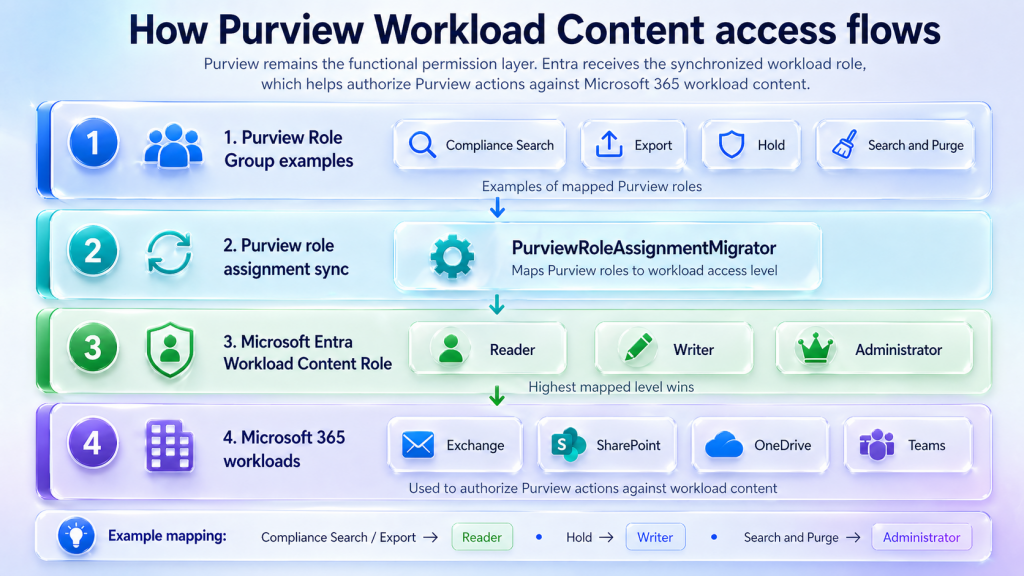
How Purview role assignments flow from Purview role groups to Microsoft Entra Workload Content roles and finally to Microsoft 365 workload authorization.
This is why the new roles can show up in Entra ID even though nobody manually assigned them there. The assignment can be the result of the Purview role synchronization process, especially when the assigner is shown as PurviewRoleAssignmentMigrator.
The old problem: Purview UI allowed, workload access missing
In many scenarios, Purview answers one question:
Is this user allowed to use this Purview feature?
But the Microsoft 365 workload behind it has a second question:
Is this user allowed to access the underlying workload content?
For example, an eDiscovery search may need access to Exchange mailboxes, Teams messages, SharePoint sites or OneDrive files. An investigation may need to read, review, export, hold or even purge content from those workloads.
So the actual permission model is not only about clicking around in the Purview portal. It is also about whether the Microsoft 365 workloads accept the action that Purview is trying to perform on behalf of that user.
And that distinction matters a lot. Especially for sensitive actions like export, hold, investigation or search and purge. 🔐
So what is a “Purview workload”?
There is no separate new product called “Purview Workload”. The term refers to Microsoft 365 workload content that Purview needs to access.
- Exchange Online: emails, mailboxes, calendar data
- SharePoint Online: sites, documents, lists
- OneDrive for Business: user files
- Microsoft Teams: chats, channel messages, meeting related content and files
So when Microsoft talks about Purview Workload Content, it basically means:
Microsoft 365 content that Purview needs to read, process, manage or act on as part of compliance, security, eDiscovery or investigation scenarios.
The new layer: Purview Workload Content roles in Entra ID
Microsoft is introducing three new Microsoft Entra roles:
- Purview Workload Content Reader
- Purview Workload Content Writer
- Purview Workload Content Administrator
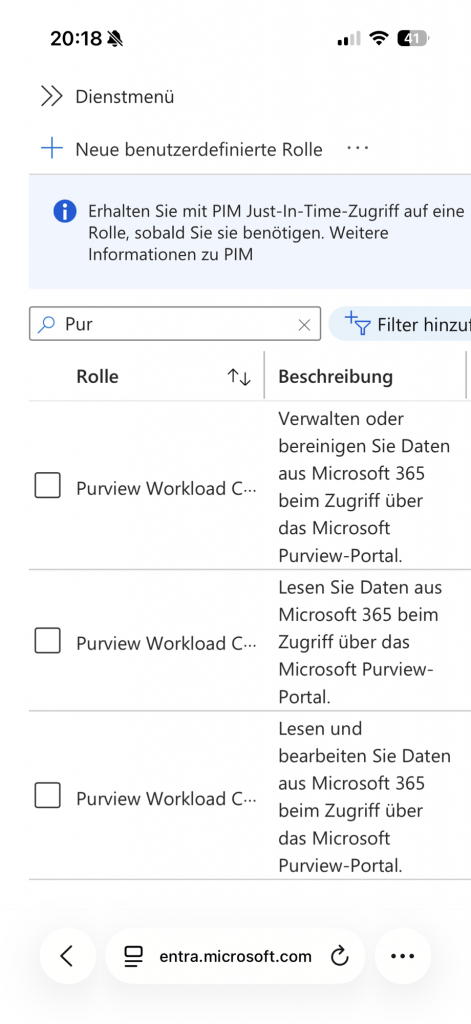
The three Purview Workload Content roles are visible in Microsoft Entra ID. The role descriptions already show the intended access levels: read, read and write, and manage or purge.
At first glance, this looks like a normal set of Entra admin roles. But the important detail is that these roles are not meant to be managed manually in Entra ID. They are synchronized from Purview role assignments.
These roles are automatically derived from specific Purview roles and synchronized to Microsoft Entra ID.
The important part: these roles are not meant to replace Purview role groups. They are more like a technical bridge between Purview and the Microsoft 365 workloads behind it. 🌉
Purview role groups vs. Purview Workload Content roles
This is the key difference:
- Purview role groups control what a user can do inside Purview.
- Purview Workload Content roles control what level of access this Purview action has to Microsoft 365 workload content.
In other words:
Purview role groups define the feature permission. Purview Workload Content roles provide the workload access level behind the scenes.
A simple example:
- A user is assigned a Purview role group that allows Compliance Search.
- Purview maps this to the required workload content level.
- Microsoft Entra receives the corresponding Purview Workload Content Reader role.
- Microsoft 365 workloads can now recognize that this user has read level access through Purview.
That does not mean the user was manually made a “Purview Workload Content Reader” by an admin. In most cases, it is the result of the Purview role assignment model.
Are these roles assigned automatically?
Yes. That is the whole point.
Microsoft maps certain Purview roles to one of the three new Entra roles. Existing assignments are synchronized, and new Purview role assignments are synchronized as well.
The source of truth remains Purview. The Entra role is the technical representation of the resulting workload content access level.
Mapping: Purview roles to Entra Workload Content roles
The mapping is based on the highest required access level. If a user has multiple matching Purview roles, the highest role wins:
Administrator > Writer > Reader
| Automatically assigned Entra role | Triggered by Purview role | What it means |
|---|---|---|
| Purview Workload Content Reader | Compliance Search | Read level access to Microsoft 365 workload content through Purview. |
| Purview Workload Content Reader | Export | Read level access to Microsoft 365 workload content through Purview. |
| Purview Workload Content Reader | Insider Risk Management Analysis | Read level access to Microsoft 365 workload content through Purview. |
| Purview Workload Content Reader | Insider Risk Management Investigation | Read level access to Microsoft 365 workload content through Purview. |
| Purview Workload Content Reader | Privacy Management Admin | Read level access to Microsoft 365 workload content through Purview. |
| Purview Workload Content Reader | Privacy Management Analysis | Read level access to Microsoft 365 workload content through Purview. |
| Purview Workload Content Reader | Privacy Management Investigation | Read level access to Microsoft 365 workload content through Purview. |
| Purview Workload Content Reader | Privacy Management Permanent Contribution | Read level access to Microsoft 365 workload content through Purview. |
| Purview Workload Content Reader | Privacy Management Temporary Contribution | Read level access to Microsoft 365 workload content through Purview. |
| Purview Workload Content Reader | Privacy Management Viewer | Read level access to Microsoft 365 workload content through Purview. |
| Purview Workload Content Reader | Data Security Investigation Reviewer | Read level access to Microsoft 365 workload content through Purview. |
| Purview Workload Content Writer | Hold | Extended access to Microsoft 365 workload content through Purview. |
| Purview Workload Content Writer | Privacy Management Investigation | Extended access to Microsoft 365 workload content through Purview. |
| Purview Workload Content Writer | Data Security Investigation Investigator | Extended access to Microsoft 365 workload content through Purview. |
| Purview Workload Content Administrator | Search and Purge | Highest access level. Relevant for administrative and potentially destructive actions. |
| Purview Workload Content Administrator | Data Security Investigation Admin | Highest access level. Relevant for administrative and potentially destructive actions. |
| Purview Workload Content Administrator | Data Security Investigation Analyst | Highest access level. Relevant for administrative and potentially destructive actions. |
This is especially important for Search and Purge. That role is not just about looking at content. It can be used for highly sensitive actions that may remove content from Microsoft 365 workloads. So it makes sense that this maps to the highest level: Purview Workload Content Administrator.
Can you assign these roles manually?
Technically, you may see these roles in Entra ID. That makes it tempting to treat them like normal admin roles.
But that is not the intended model. 🚫
These roles should not be manually assigned in Entra ID. They are managed through Purview role assignments and synchronized automatically.
There are two reasons why manual assignment is not a good idea:
- It does not replace Purview permissions.
A user still needs the correct Purview role group to use the actual Purview feature. - It may conflict with the synchronization model.
If Purview is the source of truth, direct Entra changes can be confusing, overwritten or difficult to explain during an audit.
The cleaner approach is:
- Assign the user or group to the correct Purview role group.
- Let Purview synchronize the matching workload content role to Entra ID.
- Review the resulting Entra assignment in audit logs if needed.
Why does PIM raise an alert?
This is where things can look scary for a moment. 😅
You may see a PIM alert like this:
Purview Workload Content Administrator role was assigned outside of PIM.
At first glance, this looks like a privileged role was assigned directly and permanently outside of the proper PIM process.
And yes, that is exactly what the generic alert is designed to detect. But in this specific Purview scenario, the assignment may have been created automatically by the Purview role synchronization process.
So the alert is not automatically an incident. But it is definitely worth reviewing.
What should you check?
If you see one of these roles appear in Entra ID or receive a PIM alert, check the source before removing anything.
1. Check Entra audit logs
Search for the role assignment event and look at the initiator.
- Was it created by a normal admin account?
- Was it created by a Microsoft or Purview related service?
- Do you see references to a Purview role assignment migration or synchronization process?
If a human admin assigned the role directly, that should be reviewed carefully.
2. Check Purview role groups
Go to the Microsoft Purview portal and review:
- Settings
- Roles and scopes
- Role groups
Look for roles such as:
- Compliance Search
- Export
- Hold
- Search and Purge
- Insider Risk Management Investigation
- Data Security Investigation Admin
- Data Security Investigation Analyst
If the user or group has one of these roles, the Entra role assignment may simply be the expected result of the new mapping.
3. Fix the source, not only the symptom
If the assignment comes from Purview, removing only the Entra role is not the right long term fix.
The source is the Purview role group membership. If the user should not have that level of access, adjust the Purview role group assignment.
4. Use PIM enabled groups where possible
If you want just in time access, a cleaner model is usually:
- Create or use a PIM enabled security group.
- Add that group to the relevant Purview role group.
- Let users activate the group through PIM.
- Let Purview synchronize the resulting workload content role.
This keeps Purview as the functional permission layer, while still allowing privileged access to be controlled through PIM.
Why this matters
This change is more than just another role appearing in Entra ID.
It shows that Microsoft is making the connection between Purview and the underlying Microsoft 365 workloads more explicit. That is a good thing, especially for high impact actions such as:
- Searching across mailboxes and sites
- Exporting investigation data
- Applying holds
- Reviewing sensitive communication
- Purging malicious or unwanted content
These are not lightweight permissions. They can expose, preserve, export or remove business critical data. So it makes sense that the permission model becomes more visible and more tightly connected to Entra ID.
Final takeaway
The new Purview Workload Content roles are not a replacement for Purview role groups.
They are the technical bridge between Purview permissions and Microsoft 365 workload access.
Think of it like this:
Purview role groups decide what someone can do in Purview.
Purview Workload Content roles allow Microsoft 365 workloads to understand the access level behind that Purview action.
So if you suddenly see Purview Workload Content Administrator in Entra ID and PIM complains, do not panic immediately. But also do not ignore it.
Check where the assignment came from. Check the Purview role groups. Check whether the user really needs roles like Search and Purge, Export, Hold or Data Security Investigation Admin.
Because in the end, the real question is not only:
Why did this Entra role appear?
The better question is:
Who in my tenant can actually access, export, hold, investigate or purge Microsoft 365 content through Purview?
That is the permission review that really matters. 🔎

Schreibe einen Kommentar