
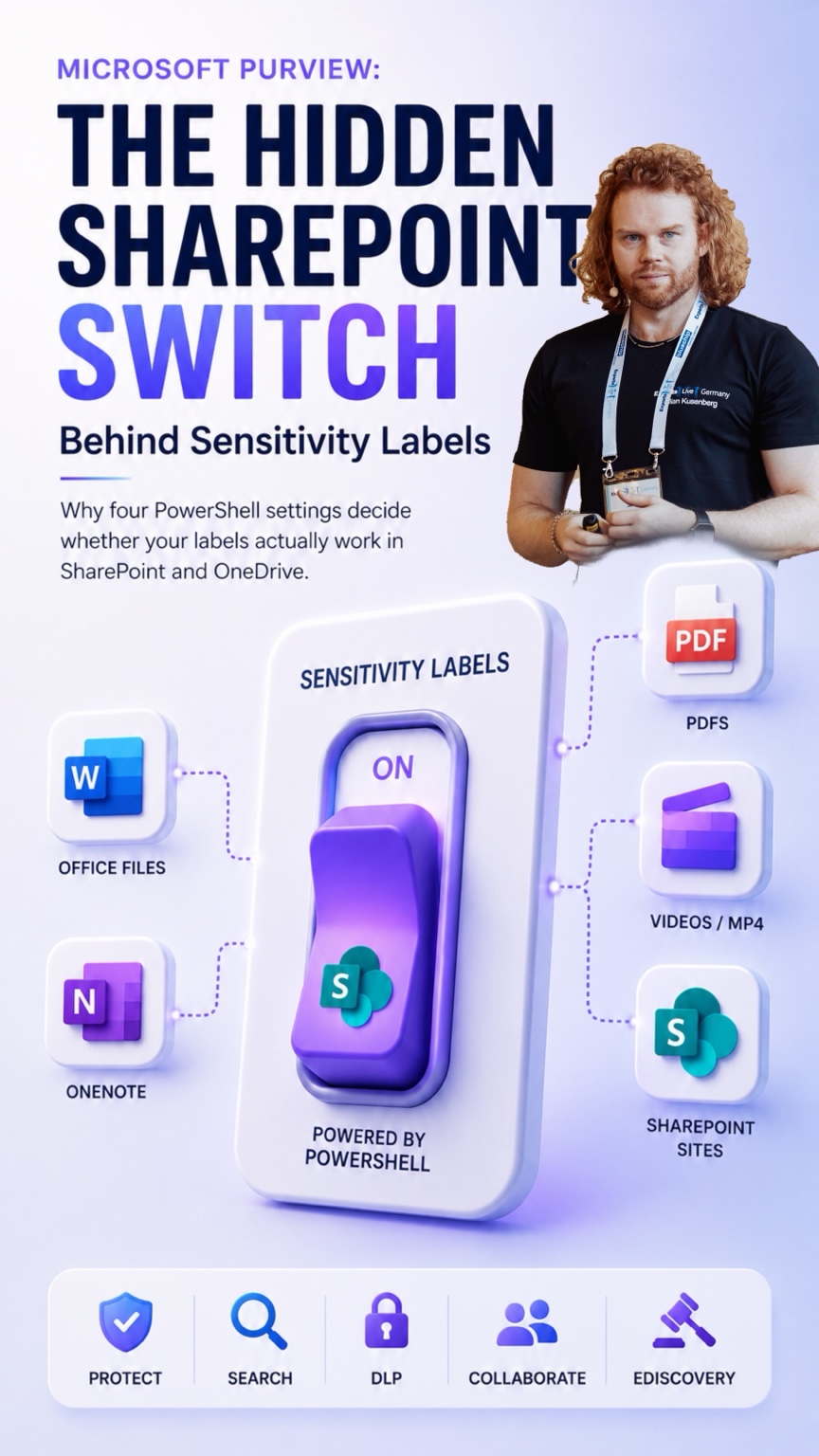
Microsoft Purview · SharePoint · Information Protection
Labels live in Purview. But do SharePoint and OneDrive actually process them?
Why Microsoft Purview labeling is not only a Purview Portal topic
PowerShell · Set-SPOTenant · PDF · OneNote · Video
TL;DR — the short version, before the details
Creating and publishing a sensitivity label in Purview is only half the job. SharePoint and OneDrive need their own tenant-level switches turned on before they can process, search, protect and govern labeled files. Until then, encrypted files break coauthoring, eDiscovery, DLP and search. Four Set-SPOTenant switches control this — and only the first is sometimes on by default:
EnableAIPIntegration— the foundation; Office file labeling, encrypted-content processing, eDiscovery and DLP.EnableSensitivityLabelForPDF— PDF labeling, search, auto-labeling and default labels.EnableSensitivityLabelForOneNote— separate step; does not support Multi-Geo.EnableSensitivityLabelForVideoFiles— MP4 support (preview); encrypted videos play but can’t be downloaded.
Update the SharePoint Online Management Shell module first — if the parameter is missing, that’s a module problem, not a Purview problem. Jump to the admin check for the copy-paste commands.
You create a label. You publish it. Users see it in Office.
Job done. Right?
Well, not quite. Because when files live in SharePoint and OneDrive, there is another layer involved — and that layer has its own switches. If those switches are not enabled, your labels might exist in Microsoft Purview, but SharePoint and OneDrive won’t fully process them the way you expect.
This is not only about Teams Meeting Recordings. That is just the most visible use case. The bigger question is this:
Can SharePoint and OneDrive actually understand, process and enforce Sensitivity Labels on the files they store?
That question matters for Office files, PDFs, OneNote, MP4 videos, Teams files, Stream on SharePoint, eDiscovery, DLP, search, coauthoring, default library labels and even some Loop scenarios. And the answer often starts with PowerShell.
The problem: labels exist, but the storage layer might not play along
A label in Purview is a promise. The workload support is what keeps it.
Many organizations start their labeling journey in the Microsoft Purview portal. That makes sense: labels are created there, label policies are published there, and the whole Information Protection story is managed from there.
But SharePoint and OneDrive are not passive file dumps. They need to process content, read metadata, understand encryption, and support Office for the web, DLP, eDiscovery, search and collaboration.
Microsoft documents that, until sensitivity label support is enabled for SharePoint and OneDrive, these services cannot process encrypted files. As a result, features such as coauthoring, eDiscovery, data loss prevention, search and other collaboration features do not work for those files. (See Enable sensitivity labels for files in SharePoint and OneDrive.)
The label is not the whole story.
The workload support behind the label is the real story.
The four switches you should know
One foundation, three add-ons. None of them are on by default.
Foundation
EnableAIPIntegration
Office file labeling in SharePoint & OneDrive.
Add-on
...ForPDF
PDF labeling, search, DLP, auto-labeling, default labels.
Add-on
...ForOneNote
Separate step. No Multi-Geo support.
Preview
...ForVideoFiles
MP4 video support. Currently in preview.
The naming is not exactly fresh and modern. EnableAIPIntegration still sounds like the Azure Information Protection era, but it is still the key switch for enabling sensitivity label support for files in SharePoint and OneDrive. A typical check looks like this:
Get-SPOTenant | Select-Object `
  EnableAIPIntegration,
  EnableSensitivityLabelForPDF,
  EnableSensitivityLabelForOneNote,
  EnableSensitivityLabelForVideoFiles
Example output:
EnableAIPIntegration                 : True
EnableSensitivityLabelForPDF         : False
EnableSensitivityLabelForOneNote     : False
EnableSensitivityLabelForVideoFiles  : False
The base integration is enabled, but PDF, OneNote and video support are not. And yes — that matters.
00
What EnableAIPIntegration actually does
This is not a cosmetic switch. It is where the operational impact starts.
EnableAIPIntegration is the foundation. When enabled, SharePoint and OneDrive can support sensitivity labeling scenarios for supported Office files. Users can apply labels in Office for the web, see the Sensitivity button and view the applied label name. They can also see and apply labels from the details pane in SharePoint and OneDrive, including from the Files tab in Microsoft Teams.
More importantly, SharePoint and OneDrive can process the content of supported encrypted Office files. After enabling this feature, they can recognize labels and process the contents of encrypted Word, Excel and PowerPoint files — as long as the encryption uses a cloud-based key and does not use Double Key Encryption. Microsoft also states that eDiscovery supports full-text search for these files and that DLP policies support content in them.
Without the switch
„The file has a label.“
With the switch
„SharePoint and OneDrive can actually work with the labeled file.“
First, the module. Then the switch.
If the parameter isn’t there, you don’t have a Purview problem yet. You have a PowerShell problem.
The module you need is Microsoft.Online.SharePoint.PowerShell. The minimum version depends on what you want to enable:
| Scenario | Minimum SPO Management Shell version |
|---|---|
| Office files (base) | 16.0.19418.12000 |
| PDF support | 16.0.24211.12000 |
| OneNote support | ~16.0.26914.12004 |
| Video / MP4 support | No separate version documented — update & verify |
16.0.27313.12000.Check your installed module version:
Get-Module Microsoft.Online.SharePoint.PowerShell -ListAvailable |
  Sort-Object Version -Descending |
  Select-Object Name, Version, Path
Then check whether your Set-SPOTenant cmdlet knows the relevant parameters:
(Get-Command Set-SPOTenant).Parameters.Keys |
  Where-Object { $_ -like "*Video*" -or $_ -like "*SensitivityLabel*" }
If your module is current, you should see SensitivityLabel, EnableSensitivityLabelForPDF, EnableSensitivityLabelForOneNote and EnableSensitivityLabelForVideoFiles. If not, install or update it:
Install-Module -Name Microsoft.Online.SharePoint.PowerShell
Install-Module -Name Microsoft.Online.SharePoint.PowerShell -Scope CurrentUser
Update-Module  -Name Microsoft.Online.SharePoint.PowerShell
If you use PowerShell 7, Microsoft states that you need to import the SharePoint module with UseWindowsPowerShell, then connect:
Import-Module Microsoft.Online.SharePoint.PowerShell -UseWindowsPowerShell
Connect-SPOService -Url https://<tenant>-admin.sharepoint.com
01
Enable the base integration
The foundation switch. Everything else builds on this one.
Set-SPOTenant -EnableAIPIntegration $trueTiming
Microsoft states that, like other tenant-level changes, this takes about 15 minutes to take effect. In real projects, I still give it some breathing room before testing end to end — especially when label policies or encryption settings were changed at the same time.
02
Enable PDF support
„PDFs are covered“ is an assumption. This is the switch that makes it true.
Set-SPOTenant -EnableSensitivityLabelforPDF $trueThis enables PDF support for scenarios such as applying a sensitivity label in Office for the web, extracting and displaying labels from uploaded labeled PDFs, search, eDiscovery, DLP, auto-labeling policies and default sensitivity labels for SharePoint document libraries. Microsoft also notes that signed PDFs are not supported.
Without this switch, many people assume PDFs are covered by labels because the strategy looks complete on paper. In practice, PDF support needs to be explicitly enabled for these SharePoint and OneDrive scenarios.
03
Enable OneNote support
Loop comes along for free. OneNote does not.
Set-SPOTenant -EnableSensitivityLabelforOneNote $trueMicrosoft explicitly states that enabling sensitivity labels for SharePoint and OneDrive automatically enables sensitivity labels for Loop components and pages — but OneNote requires this additional PowerShell step. So if your organization uses OneNote heavily, do not assume it is included just because the base switch is enabled.
04
Enable video support
The switch that triggered this whole topic — and it’s about far more than Teams recordings.
Set-SPOTenant -EnableSensitivityLabelForVideoFiles $trueMicrosoft describes this as support for MP4 video files in SharePoint and OneDrive. The feature is currently in preview and must be enabled with PowerShell. MP4 files can be labeled manually, but they cannot be labeled automatically or by default. They can also inherit a sensitivity label from a Teams meeting. So Teams Meeting Recordings are just the most obvious example. The broader scope:
- MP4 files stored in SharePoint and OneDrive
- Stream on SharePoint scenarios
- Teams recordings and meeting artifacts
- Any video files that need label-based protection
Protection detail
If an MP4 file has a sensitivity label that applies encryption, Microsoft states the file cannot be downloaded — while labeled MP4 files still support playback in SharePoint, Teams and Clipchamp. Not just „this video is confidential“, but „this confidential video can be played, not downloaded.“
There is a related preview setting for Teams meetings, „Apply meeting label to artifacts“. It can automatically apply the meeting sensitivity label to recordings and transcripts as MP4 files, and to meeting notes as Loop files, when those artifacts are saved to SharePoint or OneDrive. For MP4 files, this requires sensitivity labeling support for MP4 to be enabled. So the relationship is:
EnableSensitivityLabelForVideoFilesenables the MP4 foundation.- Apply meeting label to artifacts uses that foundation for Teams recordings and transcripts.
That distinction matters. Otherwise people reduce the whole topic to „Teams recordings“, when the actual configuration is much more fundamental.
Default labels on document libraries
Not a Teams recording topic. A document governance topic.
Once SharePoint is enabled for sensitivity labels, you can configure a default sensitivity label for document libraries. Microsoft describes that new files uploaded to the library, or existing files edited in it, can have the default label applied if they do not already have a label, or if they have a lower-priority one. This makes the SharePoint switch relevant for governance patterns such as:
This library should be Internal by default.
This project space should be Confidential by default.
This controlled area should start protected.
What this is not: container labeling
A labeled Team is not a folder full of labeled files.
One important clarification: sensitivity labels for SharePoint sites, Teams and Microsoft 365 Groups are a different scenario. A container label can control settings for a workspace, such as privacy, external sharing or guest access. Microsoft describes container labels for collaboration workspaces such as Microsoft Teams, Microsoft 365 Groups, SharePoint sites, Viva Engage communities and Loop workspaces.
But a container label is not the same as a file label. Microsoft also states in the Copilot considerations documentation that sensitivity labels applied to containers such as groups and sites are not inherited by items inside those containers.
Don’t confuse these two worlds
„A Team is labeled Confidential“ does not automatically mean „every file inside that Team is labeled Confidential.“ For file-level protection, you need file-level labeling — and for SharePoint and OneDrive to properly process those labels, you need the relevant tenant settings.
The check I run in every tenant
Three commands to see the state. Four to fix it.
Get-Module Microsoft.Online.SharePoint.PowerShell -ListAvailable |
  Sort-Object Version -Descending |
  Select-Object Name, Version, Path

(Get-Command Set-SPOTenant).Parameters.Keys |
  Where-Object { $_ -like "*Video*" -or $_ -like "*SensitivityLabel*" }

Get-SPOTenant | Select-Object `
  EnableAIPIntegration,
  EnableSensitivityLabelForPDF,
  EnableSensitivityLabelForOneNote,
  EnableSensitivityLabelForVideoFiles
If needed, enable the features:
Set-SPOTenant -EnableAIPIntegration $true
Set-SPOTenant -EnableSensitivityLabelforPDF $true
Set-SPOTenant -EnableSensitivityLabelforOneNote $true
Set-SPOTenant -EnableSensitivityLabelForVideoFiles $true
Multi-Geo note
For Microsoft 365 Multi-Geo tenants, you must connect to each geo location and run the relevant command separately for sensitivity label support and for MP4 or PDF support — with a documented exception that the OneNote command currently does not support Multi-Geo.
The real point
This is one of those Microsoft Purview topics where the portal does not tell the whole story. You can design the best label taxonomy in the world. You can publish beautiful label policies. You can train users. You can align everything with compliance, legal and information security.
But if SharePoint and OneDrive are not enabled to properly process those labels, your governance model has a blind spot. Because this is about whether labeled content remains usable, searchable, discoverable, protected and governable inside Microsoft 365.
The PowerShell settings are small.
The impact is not.
So the next time someone says „Sensitivity Labels are already configured“, the better question is: configured where? In Purview only, or also where the files actually live?

Schreibe einen Kommentar